



ARTICLE
For weeks I kept seeing posts about Figma MCP and Figma Console MCP and almost every single one showed it working with Claude. At first I thought, that’s just the way it is I guess, these new tools were tied to Claude. I even downloaded Claude on my device to try it out. I tried it out with Figma MCP, but it didn't feel right.
I’ve used ChatGPT for years. I even recently started using the Codex Mac app for complex browser-based workflows and animation experiments. So I wanted these MCPs working with Codex, not a bunch of separate AI CLI tools and MCP enabled applications.
This is not a guide. This post is my experience of getting both MCPs working in Codex, step by step, including the problems that I ran into and how I solved them.
Understanding the two MCP servers
Before I committed to installing both the MCP‘s, I first checked what the difference was. Yes, these are two different MCP servers. Figma MCP is officially from Figma and Figma console MCP is third party.
Figma MCP is great for reading the context of the design file. Everything from reviewing typography, getting component structures, generating documents from the design frames, etc. And with good prompts, it can also generate HTML files matching the design and with animations.
The only problem, it can’t create or edit designs within the Figma file. This is where Figma console MCP comes in. It can generate design systems, edit current designs, create pages, frames, buttons and a lot more.
Connecting the official Figma MCP to Codex
This was the easiest to connect. Just few mouse clicks.
Codex → Settings → MCP Servers → Toggle 'ON' Figma (by Figma)
It then opened a browser tab to authenticate with Figma and once done, it started working perfectly. The only issue here is, this MCP will work only with one Figma account at a time so I had to login and authenticate with the Figma account that I wanted to get connected with this MCP server.
Once done, to check whether my account was connected or not, I asked Codex to Check Figma MCP status. And I got this read-only MCP connected.
Connecting Figma Console MCP to Codex
Connecting this third party MCP was kind of intimidating because there wasn't a step-by-step method of using this MCP in Codex. It can work but I'm not technical enough to understand it and write the command lines myself. So, I used a combination of ChatGPT, Terminal and Codex to get it all set up.
I started by going through the GitHub Figma Console MCP repository by Southleft and their documentation page. Through the documentation, I found that there were two different ways to integrate this MCP: Remote Mode and Local Mode. While Remote Mode is easy and fast to set up, it required Figma Enterprise plan which I do not have. I went with the Local Mode which does not need that, plus, it also gives all the features and functionalities possible.
Prompts in ChatGPT-
Here is the repository link. We will go with the Local mode for full capabilities. How to set it up in details in Codex Mac app?
It showed me a flow chart showing how we will get it working. Explained about the Local mode and gave me some pre-requisites. I needed-
Figma Desktop app (The MCP server only works with the Figma and desktop app, not the browser)
Node.js v18+
Codex Mac app
Figma Personal Access Token
Figma Desktop Bridge plugin
Lets go one step at a time. Wait for my response and only then move to next step. How can I check whether I have Node.js installed?
I opened my Terminal and ran:
node -v
npm -v
node -v
npm -v
After confirming my Node.js version, I went ahead with the next step which was generating the Personal Figma Token.
This was done inside Figma Desktop app.
Figma → Settings → Security → Personal Access Tokens → Generate new token
I gave it a proper name and set the settings based on my preferences and generated the token. An important thing here is that, the token has an expiry date. So, after it expires, I have to reconnect with the new token. (Copy the code after the token is generated because if you close it or change the tab, you will have to create a new token)
I have the token, let’s do the next step.
Rather than hardcoding the token, I decided to store it safely in a local environment file. I opened my Terminal and ran:
mkdir -p
mkdir -p
This created a new directory in the specified path. Then inside the file that opened, I entered my Figma token in this exact format:
FIGMA_ACCESS_TOKENFIGMA_ACCESS_TOKENI saved it using Control+O → Enter → Control+X and locked it down with the command:
chmod 600
chmod 600
This made sure the token stays out of Git, screenshots and any memory logs. The next step involved a launcher script.
We have stored the token safely. Now, let us create the launcher script.
I wanted to create this so that Codex can run the MCP server with the token already loaded. So, I went back to terminal and ran:
In the Nano text editor that opens, I entered:
#!/usr/bin/env bash
set -euo pipefail

# Load stored token
if [ -f "$HOME/.config/figma-mcp/env" ]; then
  set -a
  source "$HOME/.config/figma-mcp/env"
  set +a
fi

# Required
export ENABLE_MCP_APPS="true"

# Start server
exec npx -y
#!/usr/bin/env bash
set -euo pipefail

# Load stored token
if [ -f "$HOME/.config/figma-mcp/env" ]; then
  set -a
  source "$HOME/.config/figma-mcp/env"
  set +a
fi

# Required
export ENABLE_MCP_APPS="true"

# Start server
exec npx -y
Saved and then closed it and I added another command to make this executable.
chmodchmodMost of the things are done by now. I wanted to do a test run to see if we are in the right path. So, inside the terminal, I ran:
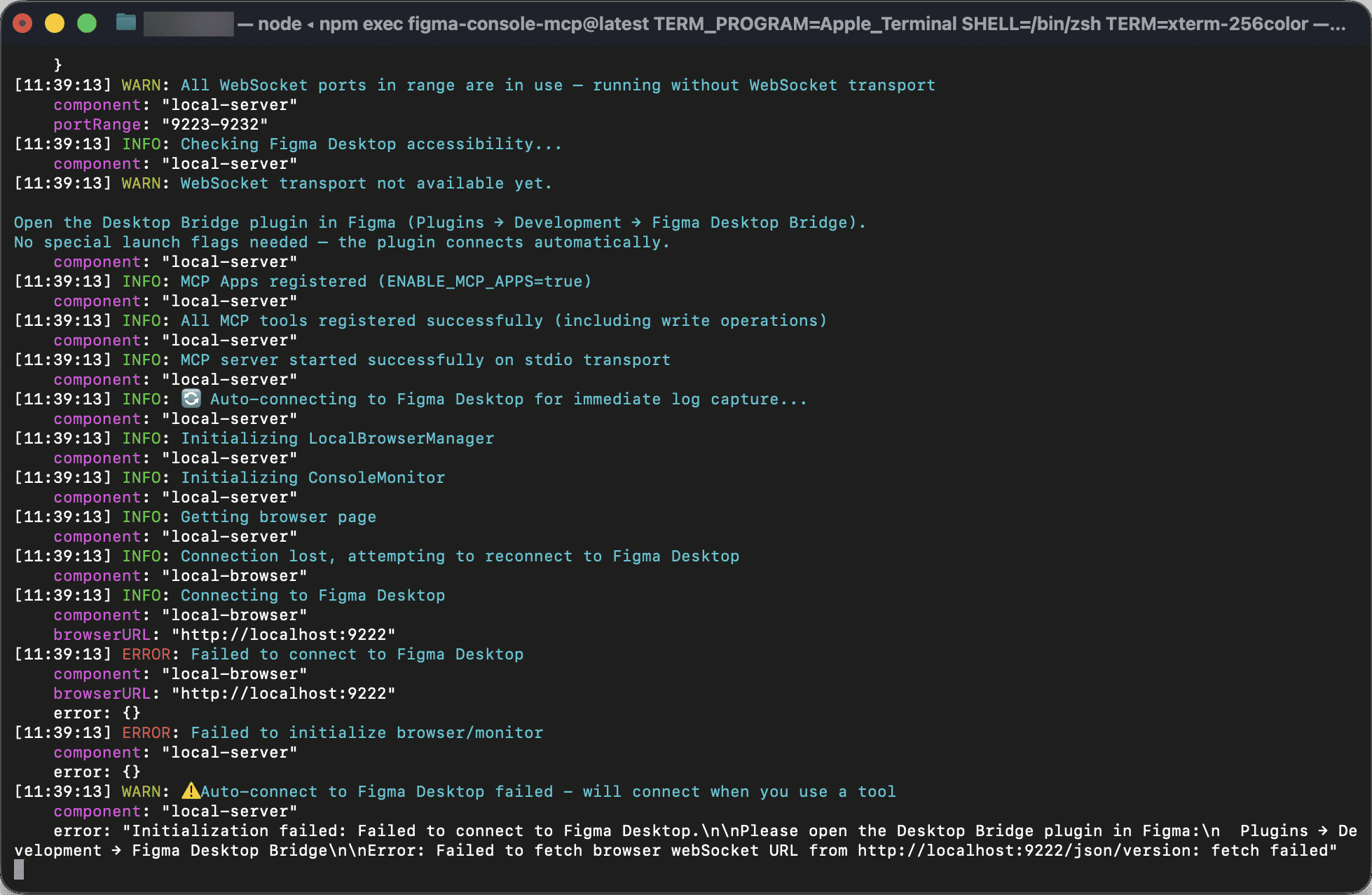
This showed me a looping log output after few seconds. Everything looked okay but I also saw Error: Desktop Bridge not connected. There was nothing to worry about here since we haven't really worked on setting up this plugin yet. I killed the process with Control+C and went to the next step.
Let's set up the Desktop Bridge plugin in Figma. How can I import the plugin manifest form?
Having the Figma console MCP repository cloned would make importing the manifest form easy and stable so I decided to go with this step. I opened Terminal and entered:
cd ~
git clone https://github.com/southleft/figma-console-mcp.git
cd figma-console-mcp
npm
cd ~
git clone https://github.com/southleft/figma-console-mcp.git
cd figma-console-mcp
npm
Adding the Local MCP to Codex-
Adding an MCP server is easy. Simple go to:
Settings → MCP → Add Server
In the window that opens, I entered the details as follow, saved it and restarted Codex.
Name: figma-console
Mode: STDIO
Command: The path to the launcher script
In Figma-
I had already cloned the repository earlier so I just had to add the plugin.
Open a design file → Plugins → Development → Import plugin from manifest → Select figma-desktop-bridge → manifest.json
I was a bit confused here, there's no need to publish it. I opened the plugin named Figma Desktop Bridge. There was a small floating window saying MCP ready. This creates the WebSocket connection between Figma and the MCP server so I have to keep this plugin open every time in the specific design file in order to use the Figma Console MCP.
Still showing Figma Desktop Bridge not connected
This was probably where I messed up. Remember to restart Figma and Codex (which I did not). I tried to fix it but nothing worked. This is when I moved to Codex to try to make it fix this error for me automatically.
Prompts in Codex-
I want to use Figma Console MCP. Here is the GitHub link. I have created the Personal Figma token and stored it. Check everything from the start. If we have missed anything, create one. We are going for npx setup.
It verified everything that I have working including the MCP entry in the Codex config.toml and found that the Figma Desktop Bridge was the only blocker that was resulting in no connection. It asked me to remove the current Figma Desktop Bridge plugin from Figma and add it again. After re-adding it, I went back to Codex and confirmed the change.
It also suggested to change my current script based setup to a direct npx based since it was simpler. I went ahead with this change and it updated the config.toml file and edited the MCP server named figma-console in Codex that we had added earlier. It also updated the environment variables for persistent GUI launches.
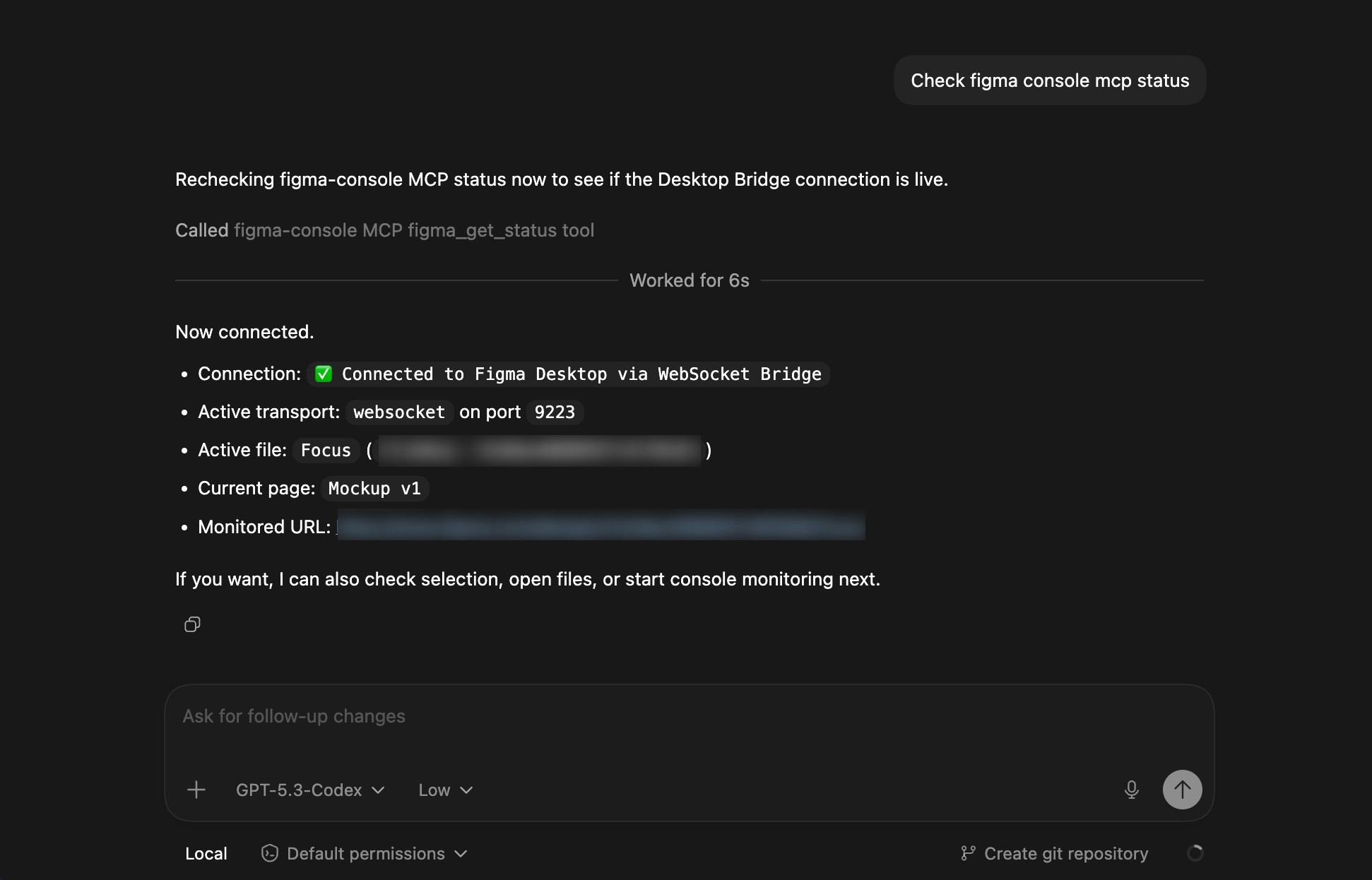
npx -ynpx -yEverything's done. Check the Figma console MCP status.
This time, it showed Connected successfully and finally I can get both the Figma MCP and Figma Console MCP working inside Codex!
Making the best use of Figma MCP and Figma Console MCP
With the use of both the MCP servers, you can create and you can automate a lot of things. But to make the best use of these, I learnt a couple of things:
Naming the layers plays a huge role. Not just random names or the default names like Frame 1, Frame 2… but names that actually can define what the frame is about.
Being detailed when explaining or modifying designs. Think of it as a notebook. Using headings, bullets and numberings can reduce the number of errors.
Get an idea of all the available tools in these two MCP servers by asking
Show me all the available tools in Figma MCP and Figma Console MCP and also explain what does those do?in Codex.
How does it benefit designers?
I’ve mostly seen about how these MCP benefit developers but rarely anyone talks about designers. After trying out most of the tools here's what I found to be best for my workflow:
Design system refactoring. Figma console MCP can create design systems with variables and tokens with just one detailed prompt. If we had to create 100s of variables, it would take a while, but now just one prompt and done! By providing the brand colors, it can create the variables without changing the brand identity.
Batch updating the UI. What if I have lots of buttons and I forgot to turn them into a component? Changing those would take a lot of time. But now, designers can simply ask Codex to change the button design and it would search all the buttons with the same name in the file and update them. (This is where naming is important)
And the most important and useful thing - prototyping. I have a feeling that we are closing in on not seeing those 100s of prototyping lines. Instead of creating multiple frames with small changes to have smart animate to work, I can simply create a completely new frame and explain the transitions that would lead to the new frame in Codex. It will use Figma MCP and create an HTML file with the completed result that I can open in any browser.
My final thoughts
The biggest misconception I saw online was, "You need Claude for Figma MCP". That's not true. With just a bit of a setup, both Figma MCP and Figma Console MCP can be connected to any MCP enabled tools. It was time taking in setting it up but once done, it saves so much time. And I think if I had done all these within Codex itself from start, it probably would've take 5 minutes.
Honestly it is a huge plus for both developers and designers. This changes how we can prototype and automate quickly. And it is also exciting to see new designs get created in real time automatically in Figma!
For weeks I kept seeing posts about Figma MCP and Figma Console MCP and almost every single one showed it working with Claude. At first I thought, that’s just the way it is I guess, these new tools were tied to Claude. I even downloaded Claude on my device to try it out. I tried it out with Figma MCP, but it didn't feel right.
I’ve used ChatGPT for years. I even recently started using the Codex Mac app for complex browser-based workflows and animation experiments. So I wanted these MCPs working with Codex, not a bunch of separate AI CLI tools and MCP enabled applications.
This is not a guide. This post is my experience of getting both MCPs working in Codex, step by step, including the problems that I ran into and how I solved them.
Understanding the two MCP servers
Before I committed to installing both the MCP‘s, I first checked what the difference was. Yes, these are two different MCP servers. Figma MCP is officially from Figma and Figma console MCP is third party.
Figma MCP is great for reading the context of the design file. Everything from reviewing typography, getting component structures, generating documents from the design frames, etc. And with good prompts, it can also generate HTML files matching the design and with animations.
The only problem, it can’t create or edit designs within the Figma file. This is where Figma console MCP comes in. It can generate design systems, edit current designs, create pages, frames, buttons and a lot more.
Connecting the official Figma MCP to Codex
This was the easiest to connect. Just few mouse clicks.
Codex → Settings → MCP Servers → Toggle 'ON' Figma (by Figma)
It then opened a browser tab to authenticate with Figma and once done, it started working perfectly. The only issue here is, this MCP will work only with one Figma account at a time so I had to login and authenticate with the Figma account that I wanted to get connected with this MCP server.
Once done, to check whether my account was connected or not, I asked Codex to Check Figma MCP status. And I got this read-only MCP connected.
Connecting Figma Console MCP to Codex
Connecting this third party MCP was kind of intimidating because there wasn't a step-by-step method of using this MCP in Codex. It can work but I'm not technical enough to understand it and write the command lines myself. So, I used a combination of ChatGPT, Terminal and Codex to get it all set up.
I started by going through the GitHub Figma Console MCP repository by Southleft and their documentation page. Through the documentation, I found that there were two different ways to integrate this MCP: Remote Mode and Local Mode. While Remote Mode is easy and fast to set up, it required Figma Enterprise plan which I do not have. I went with the Local Mode which does not need that, plus, it also gives all the features and functionalities possible.
Prompts in ChatGPT-
Here is the repository link. We will go with the Local mode for full capabilities. How to set it up in details in Codex Mac app?
It showed me a flow chart showing how we will get it working. Explained about the Local mode and gave me some pre-requisites. I needed-
Figma Desktop app (The MCP server only works with the Figma and desktop app, not the browser)
Node.js v18+
Codex Mac app
Figma Personal Access Token
Figma Desktop Bridge plugin
Lets go one step at a time. Wait for my response and only then move to next step. How can I check whether I have Node.js installed?
I opened my Terminal and ran:
node -v
npm -v
After confirming my Node.js version, I went ahead with the next step which was generating the Personal Figma Token.
This was done inside Figma Desktop app.
Figma → Settings → Security → Personal Access Tokens → Generate new token
I gave it a proper name and set the settings based on my preferences and generated the token. An important thing here is that, the token has an expiry date. So, after it expires, I have to reconnect with the new token. (Copy the code after the token is generated because if you close it or change the tab, you will have to create a new token)
I have the token, let’s do the next step.
Rather than hardcoding the token, I decided to store it safely in a local environment file. I opened my Terminal and ran:
mkdir -p
This created a new directory in the specified path. Then inside the file that opened, I entered my Figma token in this exact format:
FIGMA_ACCESS_TOKENI saved it using Control+O → Enter → Control+X and locked it down with the command:
chmod 600
This made sure the token stays out of Git, screenshots and any memory logs. The next step involved a launcher script.
We have stored the token safely. Now, let us create the launcher script.
I wanted to create this so that Codex can run the MCP server with the token already loaded. So, I went back to terminal and ran:
In the Nano text editor that opens, I entered:
#!/usr/bin/env bash
set -euo pipefail

# Load stored token
if [ -f "$HOME/.config/figma-mcp/env" ]; then
  set -a
  source "$HOME/.config/figma-mcp/env"
  set +a
fi

# Required
export ENABLE_MCP_APPS="true"

# Start server
exec npx -y
Saved and then closed it and I added another command to make this executable.
chmodMost of the things are done by now. I wanted to do a test run to see if we are in the right path. So, inside the terminal, I ran:
This showed me a looping log output after few seconds. Everything looked okay but I also saw Error: Desktop Bridge not connected. There was nothing to worry about here since we haven't really worked on setting up this plugin yet. I killed the process with Control+C and went to the next step.
Let's set up the Desktop Bridge plugin in Figma. How can I import the plugin manifest form?
Having the Figma console MCP repository cloned would make importing the manifest form easy and stable so I decided to go with this step. I opened Terminal and entered:
cd ~
git clone https://github.com/southleft/figma-console-mcp.git
cd figma-console-mcp
npm
Adding the Local MCP to Codex-
Adding an MCP server is easy. Simple go to:
Settings → MCP → Add Server
In the window that opens, I entered the details as follow, saved it and restarted Codex.
Name: figma-console
Mode: STDIO
Command: The path to the launcher script
In Figma-
I had already cloned the repository earlier so I just had to add the plugin.
Open a design file → Plugins → Development → Import plugin from manifest → Select figma-desktop-bridge → manifest.json
I was a bit confused here, there's no need to publish it. I opened the plugin named Figma Desktop Bridge. There was a small floating window saying MCP ready. This creates the WebSocket connection between Figma and the MCP server so I have to keep this plugin open every time in the specific design file in order to use the Figma Console MCP.
Still showing Figma Desktop Bridge not connected
This was probably where I messed up. Remember to restart Figma and Codex (which I did not). I tried to fix it but nothing worked. This is when I moved to Codex to try to make it fix this error for me automatically.
Prompts in Codex-
I want to use Figma Console MCP. Here is the GitHub link. I have created the Personal Figma token and stored it. Check everything from the start. If we have missed anything, create one. We are going for npx setup.
It verified everything that I have working including the MCP entry in the Codex config.toml and found that the Figma Desktop Bridge was the only blocker that was resulting in no connection. It asked me to remove the current Figma Desktop Bridge plugin from Figma and add it again. After re-adding it, I went back to Codex and confirmed the change.
It also suggested to change my current script based setup to a direct npx based since it was simpler. I went ahead with this change and it updated the config.toml file and edited the MCP server named figma-console in Codex that we had added earlier. It also updated the environment variables for persistent GUI launches.
npx -yEverything's done. Check the Figma console MCP status.
This time, it showed Connected successfully and finally I can get both the Figma MCP and Figma Console MCP working inside Codex!
Making the best use of Figma MCP and Figma Console MCP
With the use of both the MCP servers, you can create and you can automate a lot of things. But to make the best use of these, I learnt a couple of things:
Naming the layers plays a huge role. Not just random names or the default names like Frame 1, Frame 2… but names that actually can define what the frame is about.
Being detailed when explaining or modifying designs. Think of it as a notebook. Using headings, bullets and numberings can reduce the number of errors.
Get an idea of all the available tools in these two MCP servers by asking
Show me all the available tools in Figma MCP and Figma Console MCP and also explain what does those do?in Codex.
How does it benefit designers?
I’ve mostly seen about how these MCP benefit developers but rarely anyone talks about designers. After trying out most of the tools here's what I found to be best for my workflow:
Design system refactoring. Figma console MCP can create design systems with variables and tokens with just one detailed prompt. If we had to create 100s of variables, it would take a while, but now just one prompt and done! By providing the brand colors, it can create the variables without changing the brand identity.
Batch updating the UI. What if I have lots of buttons and I forgot to turn them into a component? Changing those would take a lot of time. But now, designers can simply ask Codex to change the button design and it would search all the buttons with the same name in the file and update them. (This is where naming is important)
And the most important and useful thing - prototyping. I have a feeling that we are closing in on not seeing those 100s of prototyping lines. Instead of creating multiple frames with small changes to have smart animate to work, I can simply create a completely new frame and explain the transitions that would lead to the new frame in Codex. It will use Figma MCP and create an HTML file with the completed result that I can open in any browser.
My final thoughts
The biggest misconception I saw online was, "You need Claude for Figma MCP". That's not true. With just a bit of a setup, both Figma MCP and Figma Console MCP can be connected to any MCP enabled tools. It was time taking in setting it up but once done, it saves so much time. And I think if I had done all these within Codex itself from start, it probably would've take 5 minutes.
Honestly it is a huge plus for both developers and designers. This changes how we can prototype and automate quickly. And it is also exciting to see new designs get created in real time automatically in Figma!
For weeks I kept seeing posts about Figma MCP and Figma Console MCP and almost every single one showed it working with Claude. At first I thought, that’s just the way it is I guess, these new tools were tied to Claude. I even downloaded Claude on my device to try it out. I tried it out with Figma MCP, but it didn't feel right.
I’ve used ChatGPT for years. I even recently started using the Codex Mac app for complex browser-based workflows and animation experiments. So I wanted these MCPs working with Codex, not a bunch of separate AI CLI tools and MCP enabled applications.
This is not a guide. This post is my experience of getting both MCPs working in Codex, step by step, including the problems that I ran into and how I solved them.
Understanding the two MCP servers
Before I committed to installing both the MCP‘s, I first checked what the difference was. Yes, these are two different MCP servers. Figma MCP is officially from Figma and Figma console MCP is third party.
Figma MCP is great for reading the context of the design file. Everything from reviewing typography, getting component structures, generating documents from the design frames, etc. And with good prompts, it can also generate HTML files matching the design and with animations.
The only problem, it can’t create or edit designs within the Figma file. This is where Figma console MCP comes in. It can generate design systems, edit current designs, create pages, frames, buttons and a lot more.
Connecting the official Figma MCP to Codex
This was the easiest to connect. Just few mouse clicks.
Codex → Settings → MCP Servers → Toggle 'ON' Figma (by Figma)
It then opened a browser tab to authenticate with Figma and once done, it started working perfectly. The only issue here is, this MCP will work only with one Figma account at a time so I had to login and authenticate with the Figma account that I wanted to get connected with this MCP server.
Once done, to check whether my account was connected or not, I asked Codex to Check Figma MCP status. And I got this read-only MCP connected.
Connecting Figma Console MCP to Codex
Connecting this third party MCP was kind of intimidating because there wasn't a step-by-step method of using this MCP in Codex. It can work but I'm not technical enough to understand it and write the command lines myself. So, I used a combination of ChatGPT, Terminal and Codex to get it all set up.
I started by going through the GitHub Figma Console MCP repository by Southleft and their documentation page. Through the documentation, I found that there were two different ways to integrate this MCP: Remote Mode and Local Mode. While Remote Mode is easy and fast to set up, it required Figma Enterprise plan which I do not have. I went with the Local Mode which does not need that, plus, it also gives all the features and functionalities possible.
Prompts in ChatGPT-
Here is the repository link. We will go with the Local mode for full capabilities. How to set it up in details in Codex Mac app?
It showed me a flow chart showing how we will get it working. Explained about the Local mode and gave me some pre-requisites. I needed-
Figma Desktop app (The MCP server only works with the Figma and desktop app, not the browser)
Node.js v18+
Codex Mac app
Figma Personal Access Token
Figma Desktop Bridge plugin
Lets go one step at a time. Wait for my response and only then move to next step. How can I check whether I have Node.js installed?
I opened my Terminal and ran:
node -v
npm -v
After confirming my Node.js version, I went ahead with the next step which was generating the Personal Figma Token.
This was done inside Figma Desktop app.
Figma → Settings → Security → Personal Access Tokens → Generate new token
I gave it a proper name and set the settings based on my preferences and generated the token. An important thing here is that, the token has an expiry date. So, after it expires, I have to reconnect with the new token. (Copy the code after the token is generated because if you close it or change the tab, you will have to create a new token)
I have the token, let’s do the next step.
Rather than hardcoding the token, I decided to store it safely in a local environment file. I opened my Terminal and ran:
mkdir -p
This created a new directory in the specified path. Then inside the file that opened, I entered my Figma token in this exact format:
FIGMA_ACCESS_TOKENI saved it using Control+O → Enter → Control+X and locked it down with the command:
chmod 600
This made sure the token stays out of Git, screenshots and any memory logs. The next step involved a launcher script.
We have stored the token safely. Now, let us create the launcher script.
I wanted to create this so that Codex can run the MCP server with the token already loaded. So, I went back to terminal and ran:
In the Nano text editor that opens, I entered:
#!/usr/bin/env bash
set -euo pipefail

# Load stored token
if [ -f "$HOME/.config/figma-mcp/env" ]; then
  set -a
  source "$HOME/.config/figma-mcp/env"
  set +a
fi

# Required
export ENABLE_MCP_APPS="true"

# Start server
exec npx -y
Saved and then closed it and I added another command to make this executable.
chmodMost of the things are done by now. I wanted to do a test run to see if we are in the right path. So, inside the terminal, I ran:
This showed me a looping log output after few seconds. Everything looked okay but I also saw Error: Desktop Bridge not connected. There was nothing to worry about here since we haven't really worked on setting up this plugin yet. I killed the process with Control+C and went to the next step.
Let's set up the Desktop Bridge plugin in Figma. How can I import the plugin manifest form?
Having the Figma console MCP repository cloned would make importing the manifest form easy and stable so I decided to go with this step. I opened Terminal and entered:
cd ~
git clone https://github.com/southleft/figma-console-mcp.git
cd figma-console-mcp
npm
Adding the Local MCP to Codex-
Adding an MCP server is easy. Simple go to:
Settings → MCP → Add Server
In the window that opens, I entered the details as follow, saved it and restarted Codex.
Name: figma-console
Mode: STDIO
Command: The path to the launcher script
In Figma-
I had already cloned the repository earlier so I just had to add the plugin.
Open a design file → Plugins → Development → Import plugin from manifest → Select figma-desktop-bridge → manifest.json
I was a bit confused here, there's no need to publish it. I opened the plugin named Figma Desktop Bridge. There was a small floating window saying MCP ready. This creates the WebSocket connection between Figma and the MCP server so I have to keep this plugin open every time in the specific design file in order to use the Figma Console MCP.
Still showing Figma Desktop Bridge not connected
This was probably where I messed up. Remember to restart Figma and Codex (which I did not). I tried to fix it but nothing worked. This is when I moved to Codex to try to make it fix this error for me automatically.
Prompts in Codex-
I want to use Figma Console MCP. Here is the GitHub link. I have created the Personal Figma token and stored it. Check everything from the start. If we have missed anything, create one. We are going for npx setup.
It verified everything that I have working including the MCP entry in the Codex config.toml and found that the Figma Desktop Bridge was the only blocker that was resulting in no connection. It asked me to remove the current Figma Desktop Bridge plugin from Figma and add it again. After re-adding it, I went back to Codex and confirmed the change.
It also suggested to change my current script based setup to a direct npx based since it was simpler. I went ahead with this change and it updated the config.toml file and edited the MCP server named figma-console in Codex that we had added earlier. It also updated the environment variables for persistent GUI launches.
npx -yEverything's done. Check the Figma console MCP status.
This time, it showed Connected successfully and finally I can get both the Figma MCP and Figma Console MCP working inside Codex!
Making the best use of Figma MCP and Figma Console MCP
With the use of both the MCP servers, you can create and you can automate a lot of things. But to make the best use of these, I learnt a couple of things:
Naming the layers plays a huge role. Not just random names or the default names like Frame 1, Frame 2… but names that actually can define what the frame is about.
Being detailed when explaining or modifying designs. Think of it as a notebook. Using headings, bullets and numberings can reduce the number of errors.
Get an idea of all the available tools in these two MCP servers by asking
Show me all the available tools in Figma MCP and Figma Console MCP and also explain what does those do?in Codex.
How does it benefit designers?
I’ve mostly seen about how these MCP benefit developers but rarely anyone talks about designers. After trying out most of the tools here's what I found to be best for my workflow:
Design system refactoring. Figma console MCP can create design systems with variables and tokens with just one detailed prompt. If we had to create 100s of variables, it would take a while, but now just one prompt and done! By providing the brand colors, it can create the variables without changing the brand identity.
Batch updating the UI. What if I have lots of buttons and I forgot to turn them into a component? Changing those would take a lot of time. But now, designers can simply ask Codex to change the button design and it would search all the buttons with the same name in the file and update them. (This is where naming is important)
And the most important and useful thing - prototyping. I have a feeling that we are closing in on not seeing those 100s of prototyping lines. Instead of creating multiple frames with small changes to have smart animate to work, I can simply create a completely new frame and explain the transitions that would lead to the new frame in Codex. It will use Figma MCP and create an HTML file with the completed result that I can open in any browser.
My final thoughts
The biggest misconception I saw online was, "You need Claude for Figma MCP". That's not true. With just a bit of a setup, both Figma MCP and Figma Console MCP can be connected to any MCP enabled tools. It was time taking in setting it up but once done, it saves so much time. And I think if I had done all these within Codex itself from start, it probably would've take 5 minutes.
Honestly it is a huge plus for both developers and designers. This changes how we can prototype and automate quickly. And it is also exciting to see new designs get created in real time automatically in Figma!
For weeks I kept seeing posts about Figma MCP and Figma Console MCP and almost every single one showed it working with Claude. At first I thought, that’s just the way it is I guess, these new tools were tied to Claude. I even downloaded Claude on my device to try it out. I tried it out with Figma MCP, but it didn't feel right.
I’ve used ChatGPT for years. I even recently started using the Codex Mac app for complex browser-based workflows and animation experiments. So I wanted these MCPs working with Codex, not a bunch of separate AI CLI tools and MCP enabled applications.
This is not a guide. This post is my experience of getting both MCPs working in Codex, step by step, including the problems that I ran into and how I solved them.
Understanding the two MCP servers
Before I committed to installing both the MCP‘s, I first checked what the difference was. Yes, these are two different MCP servers. Figma MCP is officially from Figma and Figma console MCP is third party.
Figma MCP is great for reading the context of the design file. Everything from reviewing typography, getting component structures, generating documents from the design frames, etc. And with good prompts, it can also generate HTML files matching the design and with animations.
The only problem, it can’t create or edit designs within the Figma file. This is where Figma console MCP comes in. It can generate design systems, edit current designs, create pages, frames, buttons and a lot more.
Connecting the official Figma MCP to Codex
This was the easiest to connect. Just few mouse clicks.
Codex → Settings → MCP Servers → Toggle 'ON' Figma (by Figma)
It then opened a browser tab to authenticate with Figma and once done, it started working perfectly. The only issue here is, this MCP will work only with one Figma account at a time so I had to login and authenticate with the Figma account that I wanted to get connected with this MCP server.
Once done, to check whether my account was connected or not, I asked Codex to Check Figma MCP status. And I got this read-only MCP connected.
Connecting Figma Console MCP to Codex
Connecting this third party MCP was kind of intimidating because there wasn't a step-by-step method of using this MCP in Codex. It can work but I'm not technical enough to understand it and write the command lines myself. So, I used a combination of ChatGPT, Terminal and Codex to get it all set up.
I started by going through the GitHub Figma Console MCP repository by Southleft and their documentation page. Through the documentation, I found that there were two different ways to integrate this MCP: Remote Mode and Local Mode. While Remote Mode is easy and fast to set up, it required Figma Enterprise plan which I do not have. I went with the Local Mode which does not need that, plus, it also gives all the features and functionalities possible.
Prompts in ChatGPT-
Here is the repository link. We will go with the Local mode for full capabilities. How to set it up in details in Codex Mac app?
It showed me a flow chart showing how we will get it working. Explained about the Local mode and gave me some pre-requisites. I needed-
Figma Desktop app (The MCP server only works with the Figma and desktop app, not the browser)
Node.js v18+
Codex Mac app
Figma Personal Access Token
Figma Desktop Bridge plugin
Lets go one step at a time. Wait for my response and only then move to next step. How can I check whether I have Node.js installed?
I opened my Terminal and ran:
node -v
npm -v
After confirming my Node.js version, I went ahead with the next step which was generating the Personal Figma Token.
This was done inside Figma Desktop app.
Figma → Settings → Security → Personal Access Tokens → Generate new token
I gave it a proper name and set the settings based on my preferences and generated the token. An important thing here is that, the token has an expiry date. So, after it expires, I have to reconnect with the new token. (Copy the code after the token is generated because if you close it or change the tab, you will have to create a new token)
I have the token, let’s do the next step.
Rather than hardcoding the token, I decided to store it safely in a local environment file. I opened my Terminal and ran:
mkdir -p
This created a new directory in the specified path. Then inside the file that opened, I entered my Figma token in this exact format:
FIGMA_ACCESS_TOKENI saved it using Control+O → Enter → Control+X and locked it down with the command:
chmod 600
This made sure the token stays out of Git, screenshots and any memory logs. The next step involved a launcher script.
We have stored the token safely. Now, let us create the launcher script.
I wanted to create this so that Codex can run the MCP server with the token already loaded. So, I went back to terminal and ran:
In the Nano text editor that opens, I entered:
#!/usr/bin/env bash
set -euo pipefail

# Load stored token
if [ -f "$HOME/.config/figma-mcp/env" ]; then
  set -a
  source "$HOME/.config/figma-mcp/env"
  set +a
fi

# Required
export ENABLE_MCP_APPS="true"

# Start server
exec npx -y
Saved and then closed it and I added another command to make this executable.
chmodMost of the things are done by now. I wanted to do a test run to see if we are in the right path. So, inside the terminal, I ran:
This showed me a looping log output after few seconds. Everything looked okay but I also saw Error: Desktop Bridge not connected. There was nothing to worry about here since we haven't really worked on setting up this plugin yet. I killed the process with Control+C and went to the next step.
Let's set up the Desktop Bridge plugin in Figma. How can I import the plugin manifest form?
Having the Figma console MCP repository cloned would make importing the manifest form easy and stable so I decided to go with this step. I opened Terminal and entered:
cd ~
git clone https://github.com/southleft/figma-console-mcp.git
cd figma-console-mcp
npm
Adding the Local MCP to Codex-
Adding an MCP server is easy. Simple go to:
Settings → MCP → Add Server
In the window that opens, I entered the details as follow, saved it and restarted Codex.
Name: figma-console
Mode: STDIO
Command: The path to the launcher script
In Figma-
I had already cloned the repository earlier so I just had to add the plugin.
Open a design file → Plugins → Development → Import plugin from manifest → Select figma-desktop-bridge → manifest.json
I was a bit confused here, there's no need to publish it. I opened the plugin named Figma Desktop Bridge. There was a small floating window saying MCP ready. This creates the WebSocket connection between Figma and the MCP server so I have to keep this plugin open every time in the specific design file in order to use the Figma Console MCP.
Still showing Figma Desktop Bridge not connected
This was probably where I messed up. Remember to restart Figma and Codex (which I did not). I tried to fix it but nothing worked. This is when I moved to Codex to try to make it fix this error for me automatically.
Prompts in Codex-
I want to use Figma Console MCP. Here is the GitHub link. I have created the Personal Figma token and stored it. Check everything from the start. If we have missed anything, create one. We are going for npx setup.
It verified everything that I have working including the MCP entry in the Codex config.toml and found that the Figma Desktop Bridge was the only blocker that was resulting in no connection. It asked me to remove the current Figma Desktop Bridge plugin from Figma and add it again. After re-adding it, I went back to Codex and confirmed the change.
It also suggested to change my current script based setup to a direct npx based since it was simpler. I went ahead with this change and it updated the config.toml file and edited the MCP server named figma-console in Codex that we had added earlier. It also updated the environment variables for persistent GUI launches.
npx -yEverything's done. Check the Figma console MCP status.
This time, it showed Connected successfully and finally I can get both the Figma MCP and Figma Console MCP working inside Codex!
Making the best use of Figma MCP and Figma Console MCP
With the use of both the MCP servers, you can create and you can automate a lot of things. But to make the best use of these, I learnt a couple of things:
Naming the layers plays a huge role. Not just random names or the default names like Frame 1, Frame 2… but names that actually can define what the frame is about.
Being detailed when explaining or modifying designs. Think of it as a notebook. Using headings, bullets and numberings can reduce the number of errors.
Get an idea of all the available tools in these two MCP servers by asking
Show me all the available tools in Figma MCP and Figma Console MCP and also explain what does those do?in Codex.
How does it benefit designers?
I’ve mostly seen about how these MCP benefit developers but rarely anyone talks about designers. After trying out most of the tools here's what I found to be best for my workflow:
Design system refactoring. Figma console MCP can create design systems with variables and tokens with just one detailed prompt. If we had to create 100s of variables, it would take a while, but now just one prompt and done! By providing the brand colors, it can create the variables without changing the brand identity.
Batch updating the UI. What if I have lots of buttons and I forgot to turn them into a component? Changing those would take a lot of time. But now, designers can simply ask Codex to change the button design and it would search all the buttons with the same name in the file and update them. (This is where naming is important)
And the most important and useful thing - prototyping. I have a feeling that we are closing in on not seeing those 100s of prototyping lines. Instead of creating multiple frames with small changes to have smart animate to work, I can simply create a completely new frame and explain the transitions that would lead to the new frame in Codex. It will use Figma MCP and create an HTML file with the completed result that I can open in any browser.
My final thoughts
The biggest misconception I saw online was, "You need Claude for Figma MCP". That's not true. With just a bit of a setup, both Figma MCP and Figma Console MCP can be connected to any MCP enabled tools. It was time taking in setting it up but once done, it saves so much time. And I think if I had done all these within Codex itself from start, it probably would've take 5 minutes.
Honestly it is a huge plus for both developers and designers. This changes how we can prototype and automate quickly. And it is also exciting to see new designs get created in real time automatically in Figma!